Why Your Computer Is Running Slow and How to Fix It
Dealing with a slow computer can be really frustrating. You might find yourself waiting forever for it to start up, or even just trying to load a web page might feel like watching paint dry. But don't worry, many of these problems have straightforward causes and solutions. In this guide, we'll explore why your computer might be lagging and what you can do to get it back up to speed with some smart maintenance, software cleanup, and maybe a few hardware upgrades.
If you're already noticing your computer is acting up, it's helpful to match the symptoms with the right solutions. For instance, if you're seeing unexpected pop-ups or weird activity on your screen, our virus and malware removal service can help you identify and remove hidden threats. If your machine is older and can't keep up with your workload, hardware upgrades might be your best bet for a smoother experience.
Computers don’t usually slow down because of one big problem. Often, it's a bunch of smaller issues like too many background tasks, aged software, or a nearly full drive. According to Intel, full storage and excessive background tasks can impact your machine's responsiveness, while Microsoft points out that high memory usage can make a PC feel old. For more tips, check out their guides on optimizing PC performance and avoiding malware.
What Usually Makes a Computer Run Slow
Too Many Programs Competing for Resources
One common culprit for a slow computer is having too many programs open at once. If you are juggling dozens of browser tabs, streaming music, and running multiple apps, your computer's CPU and RAM might be overwhelmed. This overload can cause everything to lag, freeze, or respond slowly.
This is especially true for older laptops or basic desktops with limited memory. They might start okay when you first boot them up, but then slow down as you open more apps. If you think this is your problem, try closing apps you don’t need, cutting down on browser tabs, and reducing the number of programs that start up automatically.
Not Enough RAM for Modern Workloads
RAM is your computer’s short-term memory, and it’s crucial for keeping programs and files ready to go. If you don’t have enough RAM, your computer has to rely more on storage space, which is much slower. This is why multitasking can get a bit sticky and unresponsive on machines with limited RAM.
Whether you're a student, office worker, or gamer, running out of RAM can be a real headache, especially when using browsers, spreadsheets, or creative apps. Upgrading your RAM is often one of the simplest and most cost-effective ways to boost performance. Not sure if you need more RAM? Our computer maintenance services can help you figure out whether a simple cleanup will do or if a RAM upgrade is necessary.
Nearly Full Storage
When your hard drive or SSD is almost full, it can slow down your entire system. The operating system needs some free space to manage temporary files, updates, and system processes efficiently. Without enough space, your computer might take longer to boot up, launch programs slowly, and struggle with everyday tasks.
People often underestimate how fast clutter builds up. Things like downloads, old installers, duplicate photos, and temporary files can silently eat up a lot of space. A good rule of thumb is to always keep some free space on the drive where your operating system is installed. If your storage is full and cleaning up isn’t enough, consider a storage upgrade or replacing your drive with an SSD for better performance.
Malware, Viruses, and Unwanted Background Activity
Malicious software can really mess with your computer's performance by hogging your CPU, memory, and disk activity. Some threats are obvious, like browser redirects or weird pop-ups, but others stay hidden and quietly drain resources. Security experts warn that malware can cause slow boots, random crashes, and unexplained overheating.
That’s why you shouldn’t just dismiss a slow computer as a sign of aging until you’ve checked for security issues. Regular malware scans and using updated antivirus tools can help you spot problems that you might otherwise miss. If you suspect malware is slowing you down, professional removal might save you time and protect your data. For more on staying safe online, check out the Cybersecurity and Infrastructure Security Agency for expert advice.
Outdated Software and Drivers
Updates for drivers and operating systems aren’t just about getting new features. They also fix bugs, improve compatibility, and help your hardware and software work together smoothly. If your system is running on outdated drivers, it might not use your GPU, Wi-Fi adapter, or storage controller as efficiently as it should, which can lead to slowdowns.
Software updates matter too. Old browsers, office programs, and system utilities can become unstable or less efficient over time. That’s why regular updates are a key part of keeping your computer running well. If you're not sure where to start, combining updates with our laptop repair services or a full tune-up can help maintain performance over time.
How to Diagnose the Real Cause of the Slowdown
Use Task Manager or Activity Monitor
The quickest way to find out what's slowing your computer is to open the monitoring tool. On Windows, press Ctrl + Shift + Esc to open Task Manager. On Mac, use Activity Monitor. These tools show which programs are using the most CPU, memory, disk, and network resources.
Look for patterns, not just one-time spikes. If one app is always at the top of the list, it might be poorly optimized or corrupted. If memory usage is consistently high, you may need to close more apps or upgrade your RAM. If disk usage is constantly near 100%, the problem could be a failing drive, background synchronization, or too many startup services.
Check Startup Programs
Many programs set themselves up to start automatically when your computer boots, which can slow down the startup process and affect how responsive your computer is right after you log in. This is common in both work and home computers because users often install software without realizing it adds background services.
Turn off anything you don’t need to start up right away, like chat tools, music apps, or utility software, but keep essential tools like antivirus software running. This small change can make a noticeable difference because you’ll feel it every time you start your computer.
Watch for Storage Health Problems
A drive that is failing can also make your computer feel slow. Clicking sounds, frequent freezing, corrupted files, and long file transfer times are all warning signs. If you suspect your storage is failing, back up your data immediately and limit use until you can assess the problem.
This is a good reason to get proactive service. Our data recovery services are designed for when slowdowns overlap with file access issues or drive failure. Acting quickly can mean the difference between a simple repair and losing important files.
Practical Fixes You Can Try Right Now
Close Resource-Heavy Apps and Tabs
Sometimes the simplest fixes are the best. Close apps you're not using, trim down the number of browser tabs you have open, and exit background tools that aren’t essential. If you need to keep many tabs open, consider using browser tab groups or session-saving features to reopen them later instead of leaving everything running.
On systems with limited RAM, this step can make a big difference. It eases the load on memory, lowers CPU usage, and keeps your computer responsive for the tasks that matter most. For gamers and creators, this can also reduce stutter and background interference during demanding work.
Clean Up Storage and Temporary Files
Deleting temporary files, clearing downloads, removing old installers, and emptying the recycle bin are all quick ways to free up space. Built-in cleanup tools can help you find junk files that are safe to remove. It's also smart to delete duplicate media files and uninstall software you haven't used in months.
On Windows, Disk Cleanup and Storage Sense can automate some of this work. On macOS, storage management tools can highlight large files and give recommendations. Regular cleanup is one of the easiest forms of computer maintenance, and it pairs well with periodic professional support from our computer maintenance services.
Run Security Scans and Remove Threats
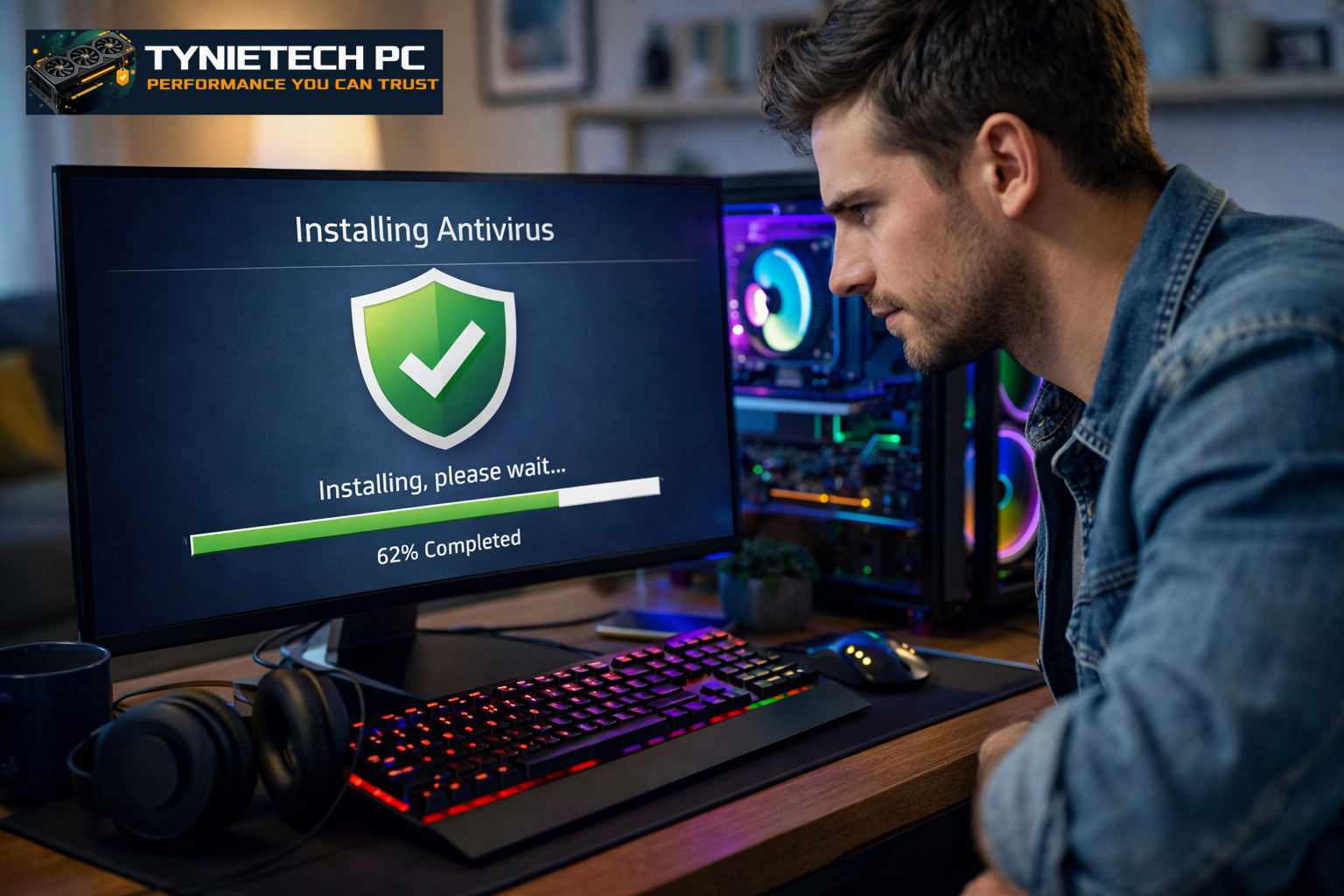
If your computer's performance issues started suddenly, security should be your first concern. Run a full antivirus scan, update your definitions, and review recent downloads or browser extensions. Remove anything suspicious, especially if you notice unusual behavior like homepage changes, unknown processes, or random pop-ups.
If you're looking for a thorough approach, professional support can be worth it because some infections are hard to remove. In these cases, a combination of scanning, cleanup, and system checks can help restore speed and protect your files. This is also a good time to review your backup habits to prevent data loss in future attacks.
Update the Operating System and Drivers
Keeping your operating system current is one of the most overlooked habits for improving performance. Updates can enhance stability, fix compatibility issues, and patch vulnerabilities that malware might exploit. Driver updates are just as important for graphics cards, chipsets, printers, and network adapters.
If you’re not comfortable updating drivers manually, use trusted system tools or seek help from a technician. Incorrect driver updates can create new issues, especially on older devices. A careful update strategy lowers risk while boosting overall system reliability.
When Hardware Upgrades Make the Biggest Difference
Upgrade from a Hard Drive to an SSD
If your computer still uses a traditional hard drive, switching to an SSD can be a game-changer for performance. SSDs load files faster, boot up the operating system more quickly, and make everyday actions feel snappy. Even an older machine can feel dramatically newer after this upgrade.
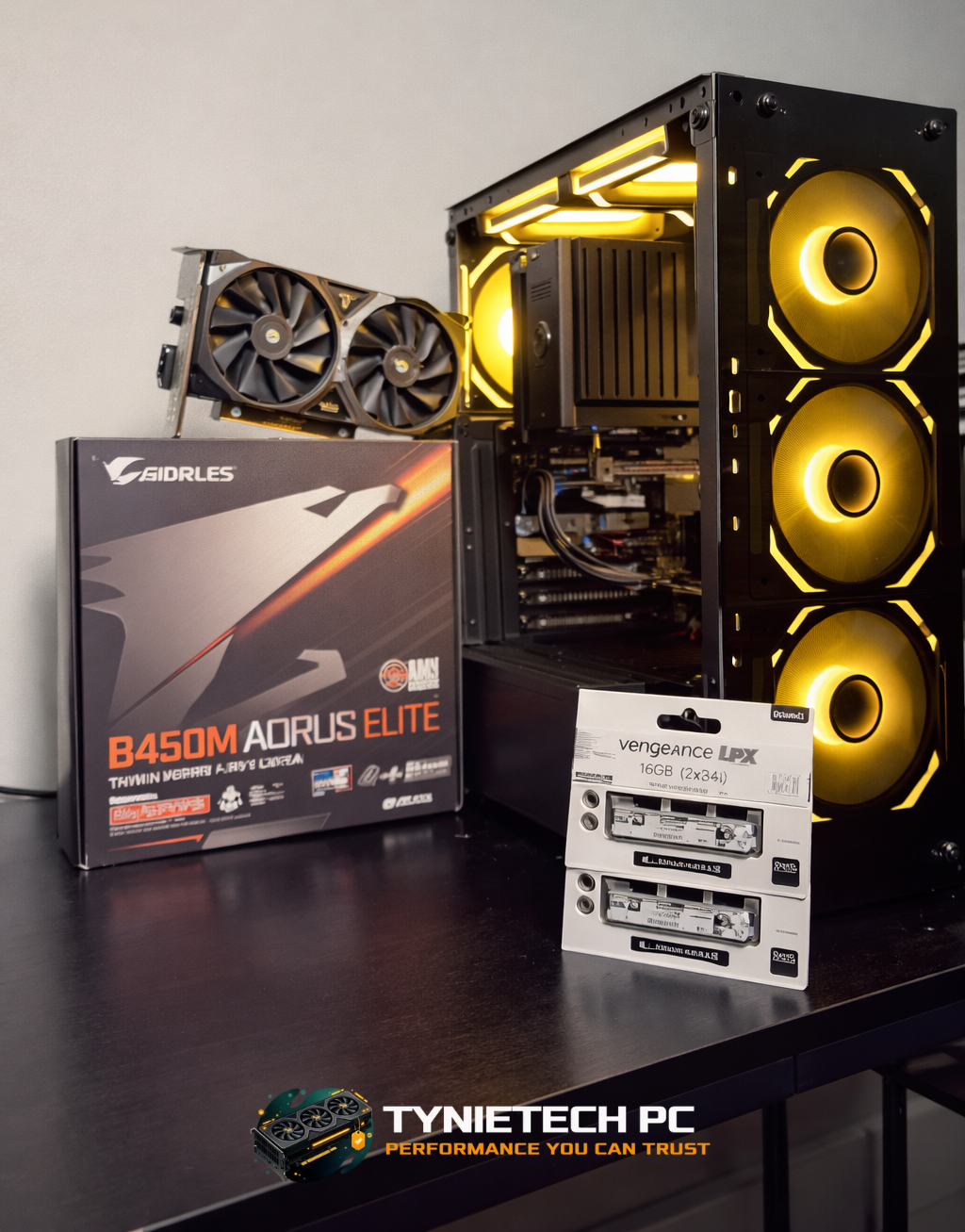
This is especially useful if you spend a lot of time in browsers, office apps, and file management. Instead of waiting for the drive to catch up, your computer becomes much more responsive. If you're considering this upgrade, our hardware upgrades service can help you choose the right drive and handle the installation.
Add More RAM for Better Multitasking
If you often use many tabs, creative software, video conferencing, or multiple productivity tools at once, more RAM might be the best investment. Adding memory lets your system keep more data ready without relying so heavily on storage. This reduces lag and helps your machine stay stable under load.
Many people wait too long to upgrade, thinking they need a new computer. But a simple memory boost can extend the life of your system and delay a full replacement. For businesses, this can lead to significant savings across multiple workstations.
Consider a Custom-Built or Purpose-Driven System
Sometimes the issue isn't just one weak part, but a mismatch between the machine and the tasks it needs to handle. A general-purpose laptop might not be ideal for gaming, heavy editing, or professional multitasking. In these cases, a purpose-driven build can improve speed and long-term value.
If you're weighing repair versus replacement, our custom-built computer solution can help align performance with your real usage needs. A well-planned build often performs better than trying to make an older machine handle tasks it wasn't designed for.
Real-World Examples and Local Support
Business Workstations That Slow Down During the Day
In a small office, a computer might seem fine in the morning but slow to a crawl by the afternoon. That pattern often points to resource-heavy software, browser bloat, cloud sync conflicts, or background updates. For local teams, a maintenance plan can keep these issues from becoming daily disruptions.
Businesses in Boston that need reliable support often benefit from combining software cleanup with hardware evaluation. A technician can figure out whether the slowdown is due to outdated storage, low memory, malware, or just overload. In many cases, targeted maintenance is enough to restore productivity without replacing all the equipment.
Gaming PCs and Creative Systems
Gamers and content creators notice slowdowns quickly because frame drops, render delays, and app freezes directly affect output. In some setups, the computer isn't really broken; it just needs better airflow, updated drivers, or more suitable storage and memory. This is where structured performance tuning matters.
If your gaming rig needs better consistency, you might also want to check our related guide on boosting FPS without replacing everything. Many of the same principles apply to general PC performance: reduce bottlenecks, update software, and make smart component choices.
Support When the Problem Keeps Coming Back
Some slowdown issues return because the root cause was never fully addressed. A computer with a failing drive, unstable RAM, or recurring malware infection might seem fixed for a short time before the symptoms come back. In these cases, professional diagnosis is the best way to avoid wasting time on temporary solutions.
That's where trusted repair service matters. If you need hands-on troubleshooting, Tynietech Pc offers repair and parts support designed to identify the cause instead of just masking the symptom. You can also check out our broader advice in the ultimate guide to maintaining your PC to decide when to troubleshoot and when to bring in expert help.
Frequently Asked Questions About Slow Computers
How do I know if I need repair or just cleanup?
If the slowdown started recently and there are no hardware warning signs, cleanup and updates may be enough. If the system is older, the drive is nearly full, or crashes keep happening, a deeper repair may be necessary. A technician can test memory, storage, and software health to narrow down the real cause.
Is upgrading hardware always necessary?
No. Many slow computers improve significantly after malware removal, storage cleanup, startup optimization, and software updates. Hardware upgrades are most valuable when your current parts are clearly limiting performance, especially in multitasking or storage-intensive use cases.
How often should I maintain my computer?
A monthly routine is a smart baseline. That can include checking updates, removing junk files, reviewing startup apps, and running a security scan. More intensive maintenance, such as hardware checks or deep cleanup, may only be needed every few months, depending on usage.
Can slow performance mean my data is at risk?
Yes, especially if the slowdown is tied to a failing drive or malware. That's why backups are so important. If files start disappearing, programs stop opening, or the drive makes unusual noises, stop using the machine and seek help quickly.
Conclusion: Restore Speed with Smart, Preventive Action
A slow computer is usually a warning sign, not a mystery. Overloaded resources, not enough RAM, full storage, malware, and outdated software are the most common causes, and each one has practical fixes. The best results usually come from combining fast cleanup with regular maintenance and, when necessary, strategic hardware upgrades.
If you want your computer to stay fast for the long term, focus on prevention as much as repair. Close unnecessary apps, keep storage organized, update your software, and monitor your system health before problems become severe. When DIY steps are not enough, professional support can save time, protect your files, and restore confidence in your device.
Ready to get your system running smoothly again? Explore our laptop repair services, hardware upgrades, and virus and malware removal options, or contact Tynietech Pc for expert help. A faster computer is not just more convenient; it makes every part of your day easier.