Essential Guide: Common Mistakes When Building or Upgrading a PC
Introduction: Avoiding Costly Mistakes
Building or upgrading a PC can be a fun and rewarding experience. You get to create a system that fits your specific needs, and you might even learn a thing or two along the way. But watch out, mistakes like picking incompatible parts or ignoring cable management can mess things up, causing your system to be unstable or even fail. Let's look at some common missteps and how you can avoid them.
This guide is packed with practical examples and tips from experts, so you can plan and build your PC with confidence. If you prefer a more hands-off approach, check out our custom-built computers service. It’s a great way to get a tailored system without the risk of trial and error. For a deeper dive into compatibility issues like socket types, take a look at this Wikipedia article on CPU sockets.
We’ll touch on component compatibility, power delivery, cooling, BIOS and driver procedures, static safety, testing, and troubleshooting. Real-world examples and step-by-step guides are included for everyone, whether you’re a first-timer or have built several PCs before.
Planning and Research: Avoiding Compatibility Pitfalls
Understand CPU Sockets and Motherboard Chipsets
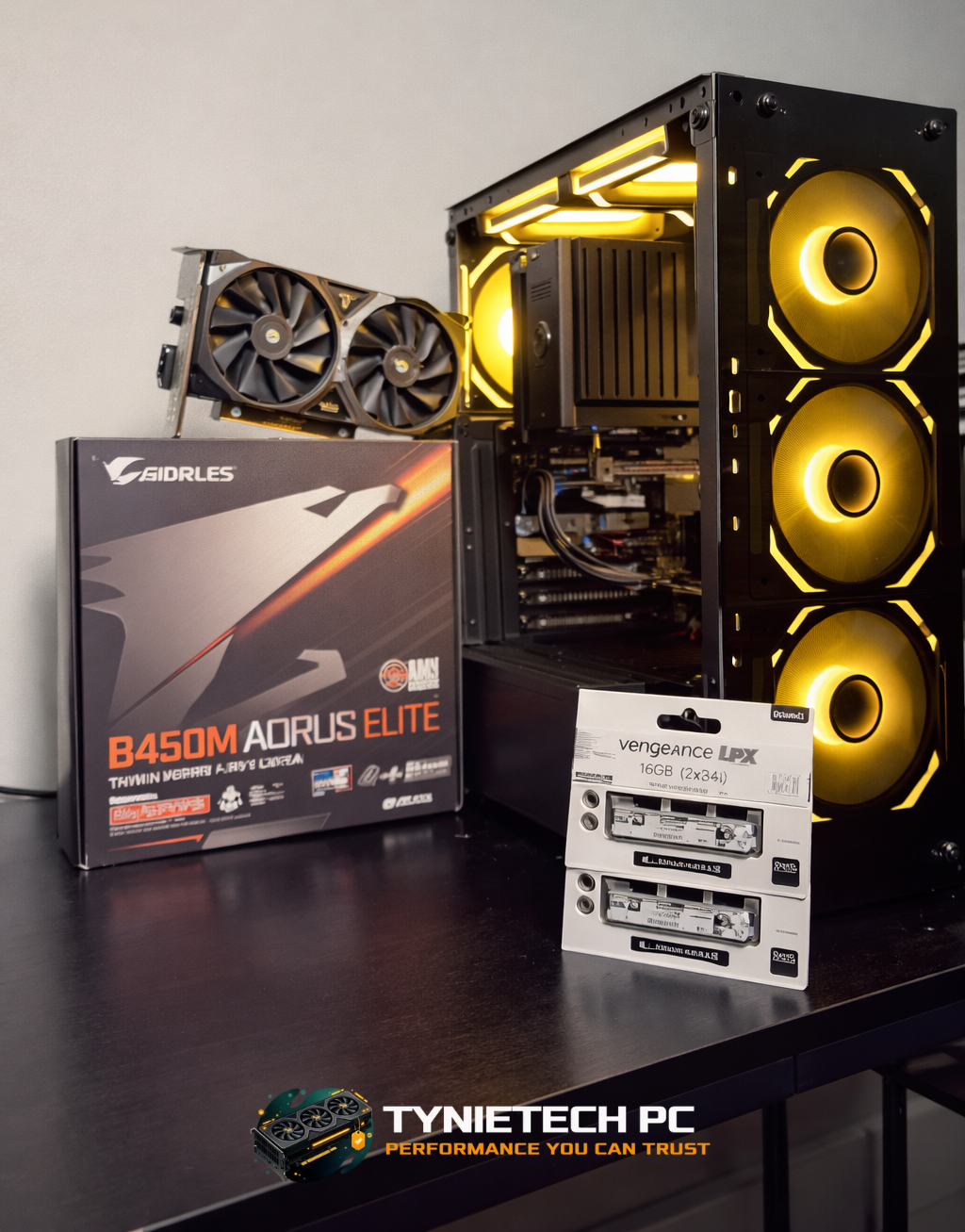
One early mistake is getting a CPU and motherboard that don't match. Intel and AMD have specific sockets and platforms, so check the CPU's socket type (like LGA1700 or AM5) and supported chipsets before you buy. Manufacturers usually list this info with supported processors and BIOS versions, so double-check before you hit "buy."
RAM Generation and Motherboard Support
RAM is another tricky area. DDR4 and DDR5 aren't interchangeable, so make sure your RAM matches your motherboard. Also, keep an eye on supported speeds and capacity limits, and whether your motherboard recommends dual- or quad-channel setups for better memory bandwidth.
Storage and Interface Compatibility
M.2 NVMe drives, SATA SSDs, and older HDDs all have different connectors. Some M.2 slots share PCIe lanes with GPU slots, which can affect performance. Check your motherboard manual for details on M.2 slots and PCIe lanes to avoid surprises.
Tools and Resources to Check Compatibility
Use tools like PCPartPicker to validate your parts list and spot conflicts before buying. These resources can help you calculate power needs, too. If you're unsure, ask experienced builders or check out professional services for advice.
Power Supply Choices: Getting the Right PSU
Why PSU Quality Matters
A low-quality or underpowered power supply (PSU) can cause a lot of trouble. Cheap PSUs might not deliver stable voltages, lack protection circuits, or have poor efficiency. Investing in a reputable, Gold-rated PSU with proper protections is worth it for longevity and safety.
How to Calculate Wattage and Headroom
Calculate your system's power needs based on CPU, GPU, drives, fans, and peripherals. Add 20–30% headroom to pick a suitable PSU wattage. For gaming builds, a quality 650W–850W PSU is often enough, but high-end setups may need more. Aim for a PSU that can handle peak loads comfortably.
Cable Compatibility: Stick to Your PSU's Cables
Mixing cables from different PSU models or brands can cause incorrect voltages and damage your components. Only use the cables that come with your PSU model and label them if you keep spares.
Understanding PSU Efficiency and Ratings
Look for at least an 80 PLUS Gold rating for a good balance between efficiency and price, especially if your system will run under load a lot. Higher efficiency reduces waste heat and can lower operating costs slightly over time. Consider modular cabling for cleaner builds, and ensure the PSU fits your case.
Want more details on power supply components and standards? Check out this Wikipedia article on power supplies.
Cooling and Airflow: Keeping Your PC Cool
Case Airflow Basics and Fan Placement
Good airflow means balancing intake and exhaust to move air through the case. Don't install too many intake fans without enough exhaust. Aim for at least one intake and one exhaust fan, and position them to move cool air past major heat sources like the CPU and GPU.
Cable Management to Aid Airflow
Messy cables can block airflow and raise internal temperatures. Use your case’s cable-routing features, zip ties, and Velcro straps to keep cables tidy. Good cable management also makes future upgrades or troubleshooting easier.
Choosing Between Liquid and Air Cooling
Air coolers are affordable and reliable for most builds, but high-end CPUs and overclocked systems might benefit from liquid cooling. If you go this route, make sure the radiator placement and airflow are compatible with your case. Liquid cooling can reduce temperatures and noise when done right.
Applying Thermal Paste and Mounting Pressure
Applying thermal paste incorrectly can cause higher temps. Use a small amount in the center of the CPU; the heatsink will spread it evenly. Avoid using too much paste that can squeeze out and create conduction paths. Make sure the heatsink is securely mounted to prevent hotspots.
For more on cooling concepts, see this Wikipedia article on computer cooling.
Performance Balance: Avoiding Bottlenecks
Pairing CPU and GPU for Your Needs
Don't pair a high-end GPU with a low-end CPU or vice versa, as it can create bottlenecks. Identify your main use: gaming, streaming, or video editing, and choose a balanced CPU/GPU combo. For 1080p gaming, a mid-range CPU with a capable GPU often offers the best value.
Deciding on RAM Capacity and Speed
How much RAM and speed you need depends on your workload. Gamers might find 16GB enough, while content creators may need 32GB or more. Speed also matters: some platforms see gains with faster memory, but check if your motherboard supports the frequency you want.
Storage Choices and Performance Impact
NVMe SSDs offer faster load times and system responsiveness compared to SATA SSDs or HDDs. Be mindful that NVMe drives can share PCIe lanes with GPU slots, which can affect throughput. Consider using NVMe for boot and apps, and SATA or HDD for mass storage.
Upgrades That Offer Great Value
Not every upgrade gives the same bang for your buck. Moving from an HDD to an SSD or increasing RAM can offer more noticeable benefits than a minor GPU upgrade. Check out our guide on effective upgrades to prioritize parts that deliver the best improvements.
BIOS, Firmware, and Driver Management
Why Update BIOS and Firmware?
New CPUs might need an updated BIOS to work properly. Skipping BIOS updates can cause instability or prevent new hardware from working. After assembly, check the motherboard's support page for BIOS updates and follow instructions carefully.
Keeping Drivers and OS Updated
Outdated GPU drivers, chipset drivers, or OS updates can cause poor performance or instability. Install the latest GPU drivers from the official vendor, update chipset and storage drivers, and apply OS patches. Keep backups to mitigate issues after updates.
Firmware Security and Boot Settings
Enable secure boot and keep firmware updated to reduce vulnerability. If you change BIOS settings for overclocking, document the original settings to revert easily. Many modern motherboards have profiles to help test performance changes while maintaining stability.
Troubleshooting Boot Failures and POST Errors
If a build fails to POST, check the motherboard LED codes, beep codes, or diagnostic displays to find the problem. Common causes include loose power connectors or improperly seated components. Systematic troubleshooting usually resolves the issue without needing new parts.
Assembly Best Practices and Static Precautions
Static Electricity Precautions
Electrostatic discharge can damage components. Use an anti-static wrist strap or touch a grounded metal surface to discharge static buildup while working. Work on a non-carpeted surface and avoid static-generating clothing to reduce risk.
Preventing Mechanical Damage
Bent CPU pins or overtightened screws are common mechanical mistakes. Align the CPU carefully with the socket and lower the retention arm gently. Install motherboard standoffs correctly to avoid shorting, and use the right torque for screws.
Cable Routing and Labeling for Upgrades
Label cables and route them behind the motherboard tray for better airflow and easier future upgrades. Modular PSUs simplify this process. Good cable routing also reduces the chance of unplugging a drive or fan accidentally.
Keeping a Clean Workspace
A tidy workspace prevents lost screws and accidental damage. Lay out all parts and tools before you start, group screws by component, and keep cleaning supplies handy. Organized builds are faster, less error-prone, and more enjoyable.
Testing, Monitoring, and Troubleshooting After the Build
Initial Boot and BIOS Checklist
On first power-on, check that the system posts and BIOS recognizes CPU, RAM, and drives. Confirm that RAM is running at advertised speeds after ensuring stability. Set basic fan curves and storage modes in BIOS to reduce reconfiguration later.
Stress Testing and Monitoring Temperatures
Use stress-testing tools to check stability under load and monitor temperatures. Tools like CPU and GPU benchmarks reveal issues that might not show during light use. Run tests for several hours and watch voltages and temps closely.
Diagnosing Common Symptoms
No boot or random reboots often point to power or memory problems, while graphical artifacts indicate GPU or driver issues. Diagnose methodically by swapping components with known-good parts and testing with minimal hardware.
When to Get Professional Help
If troubleshooting gets overwhelming or you encounter hardware failures, professional services can save time and prevent further damage. Our computer maintenance services and hardware upgrades can help with diagnostics and safe installation.
Case Studies, Real-World Examples, and Local Resources
Case Study 1: Bottlenecked Gaming Rig
One builder paired a high-end GPU with an older dual-core CPU and got lower frame rates than expected. Upgrading to a modern CPU and bumping RAM from 8GB to 16GB improved performance by 30% in CPU-bound games. This shows the importance of balancing CPU and GPU.
Case Study 2: BIOS Version Causing System Issues
Another builder installed a new CPU into a motherboard with an older BIOS that didn't support it. The system wouldn't POST until they used a BIOS flashback feature to update firmware. Always check BIOS compatibility for new CPUs.
Local Community and Professional Help
Local tech communities, meetups, and shops can offer hands-on help and advice. If DIY isn't your thing, our data recovery services and custom builds can assist with failing drives or complex upgrades. Local experts can diagnose hardware faults faster than remote troubleshooting.
Trends and Statistics: What Builders Are Doing
Builders are focusing on NVMe storage, DDR5 adoption for new builds, and efficient PSUs as power demands rise. Supply issues with memory and GPUs have eased, but prices still vary. Prioritizing quality components and measured upgrades is key to reliability.
Comprehensive FAQ and Troubleshooting Guide
Ensuring Component Compatibility
Start with a parts list and verify socket type, chipset support, RAM generation, and power needs. Use compatibility checkers and read manuals. For used parts, confirm compatibility and BIOS requirements.
PSU Wattage Needs
Calculate peak power draw using an online calculator, then add 20–30% headroom. For most gaming systems, a 650W–850W quality PSU is enough. Choose a reputable brand and ensure cables fit your case.
Applying Thermal Paste
Apply a small dot in the center of the CPU, then mount the cooler. The paste should spread evenly to fill surface irregularities. Excess paste doesn't improve heat transfer and can be messy.
Why Is My System Overheating?
Common causes include incorrect fan placement, blocked airflow, an improperly seated cooler, or missing fans. Check fan direction, clean cables, confirm heatsink mounting, and ensure thermal paste is applied correctly.
Tools for Testing and Monitoring
Use monitoring tools for temperatures and voltages, and stress-testers for stability. Popular tools include system monitoring utilities and stress benchmarks. Run tests for a few hours and watch for issues.
Conclusion: Build Smart, Test Thoroughly, and Ask for Help
Building or upgrading a PC takes attention to detail. Check compatibility, invest in a quality PSU, manage airflow, and keep firmware and drivers updated. Take your time, test thoroughly, and don't hesitate to seek professional help to protect your investment.
If you need expert support, Tynietech Pc offers services for custom builds, hardware upgrades, and maintenance. Reach out to see how we can help you make the most of your hardware.
Ready to build or upgrade with confidence? Contact Tynietech Pc for personalized advice and services. Phone: 6198577735 or email: tyni2950@gmail.com. Learn more and get started with a reliable, optimized system today.